Public Booking Page
Set up your public online booking page so clients can book and pay themselves.
Overview
The booking page is a public-facing form where clients can book an appointment, enter their property details, add optional services, and pay online — without you lifting a finger. Every booking creates a new Order with New status in your dashboard.
Enabling Online Booking
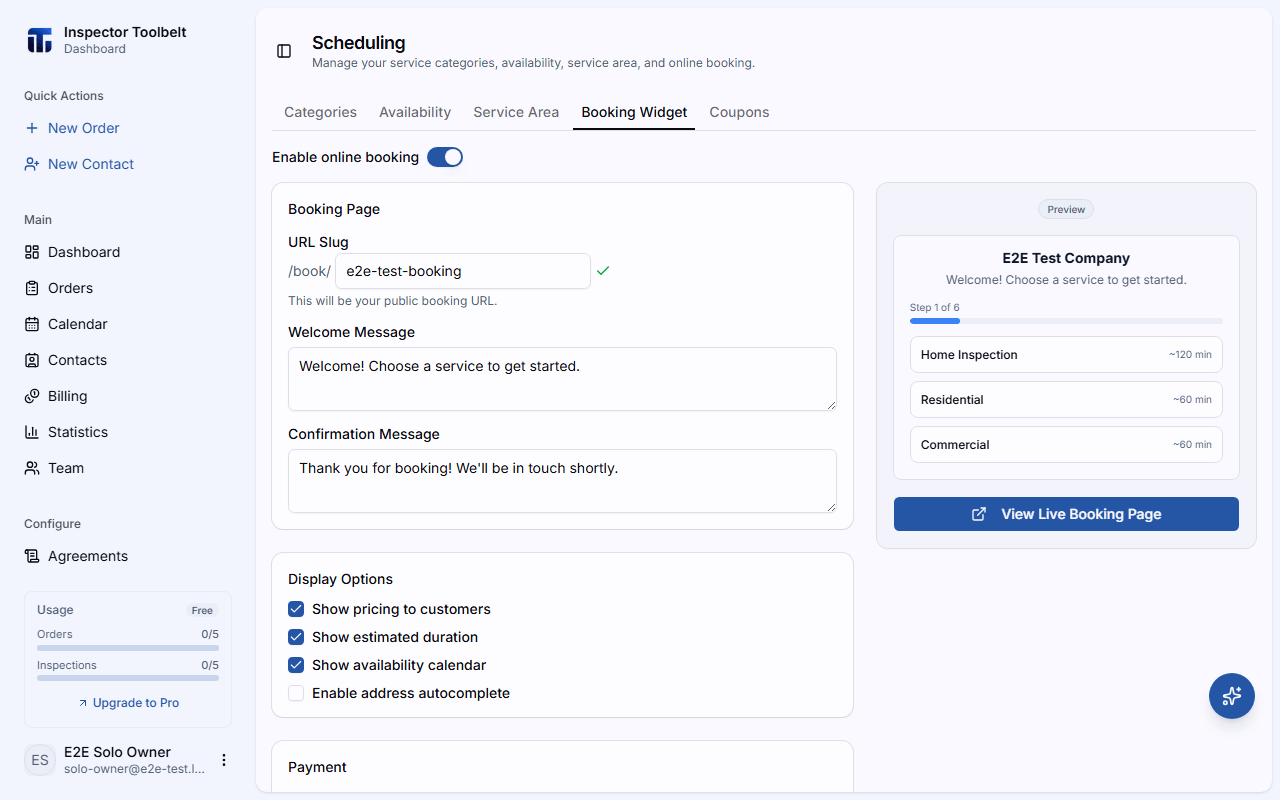
Navigate to SchedulingBooking Widget and turn on Enable online booking. The URL and configuration options appear once booking is enabled.
Your Booking URL
Set a URL Slug — this becomes your public booking link. Slugs may only contain lowercase letters, numbers, and hyphens, and must start and end with a letter or number. The dashboard checks availability as you type and confirms when the slug is free.
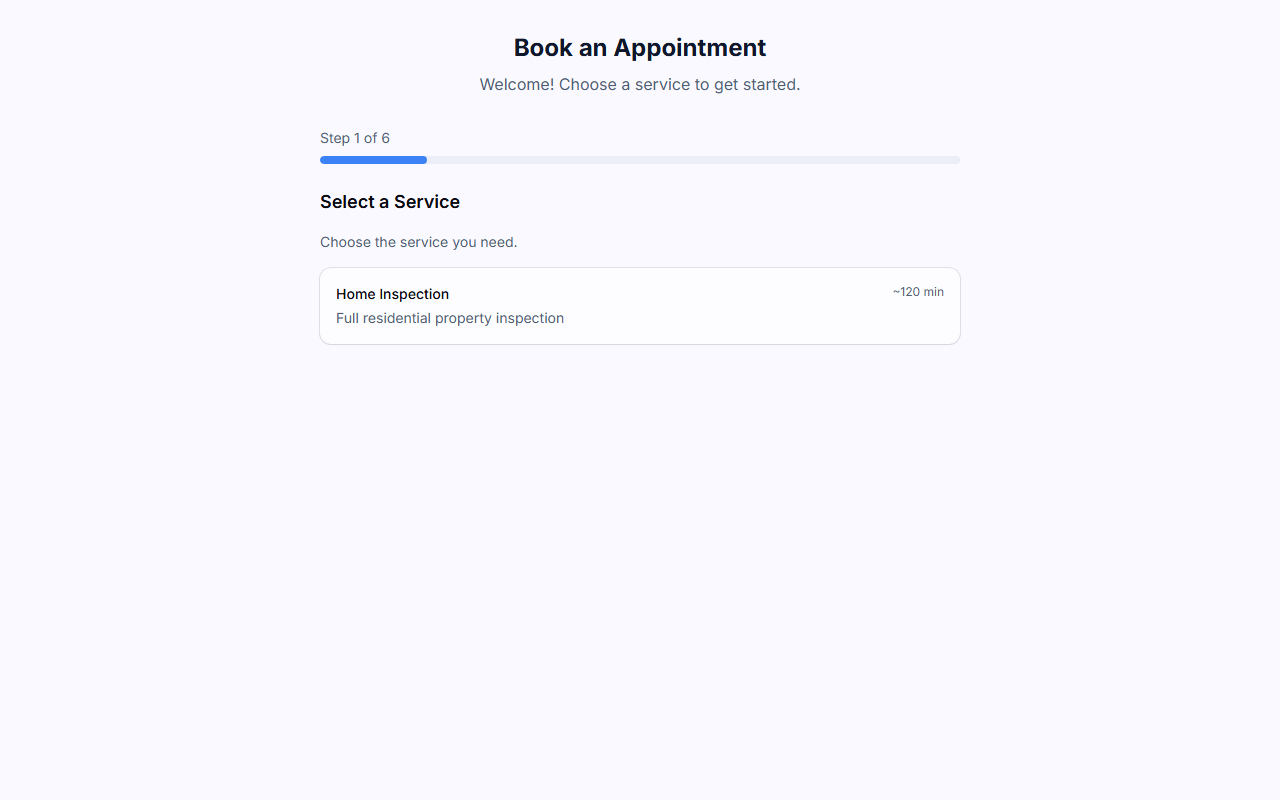
Use View Live Booking Page to open your page exactly as clients see it.
Configuration
Messaging
Customize the Welcome Message shown at the top of the form and the Confirmation Message shown after a client books.
Display Options
Choose what clients see:
- Show pricing to customers
- Show estimated duration
- Show availability calendar
- Enable address autocomplete
Payment
Turn on Collect payment at time of booking to require payment before a booking is confirmed. Then choose a Deposit Type:
| Deposit Type | Behavior |
|---|---|
| Full payment | Client pays the entire amount |
| Percentage deposit | Client pays a percentage you set (1–100%) |
| Fixed deposit | Client pays a fixed amount you set |
You can also set a Tax Rate (0–30%), which applies to taxable line items at checkout.
Stripe required
Collecting payment requires a connected Stripe account. See How Billing Works to set it up.
Terms & Branding
Add your Terms & Conditions and an optional Privacy Policy URL. Under branding, set your Primary Color, Accent Color, Font Family, and Logo Position, and toggle whether to show your Company Logo and Company Name in the header.
What clients can book
The services offered on your booking page come from your Service Categories, and the bookable time slots come from your Availability.