Service Area
Define where you work and add travel surcharges for distance.
Overview
Your service area defines the geographic region you cover. It can warn clients — or block bookings entirely — when an Order address falls outside your range, and it can add travel surcharges based on distance.
Setting Your Service Area
Navigate to SchedulingService Area.
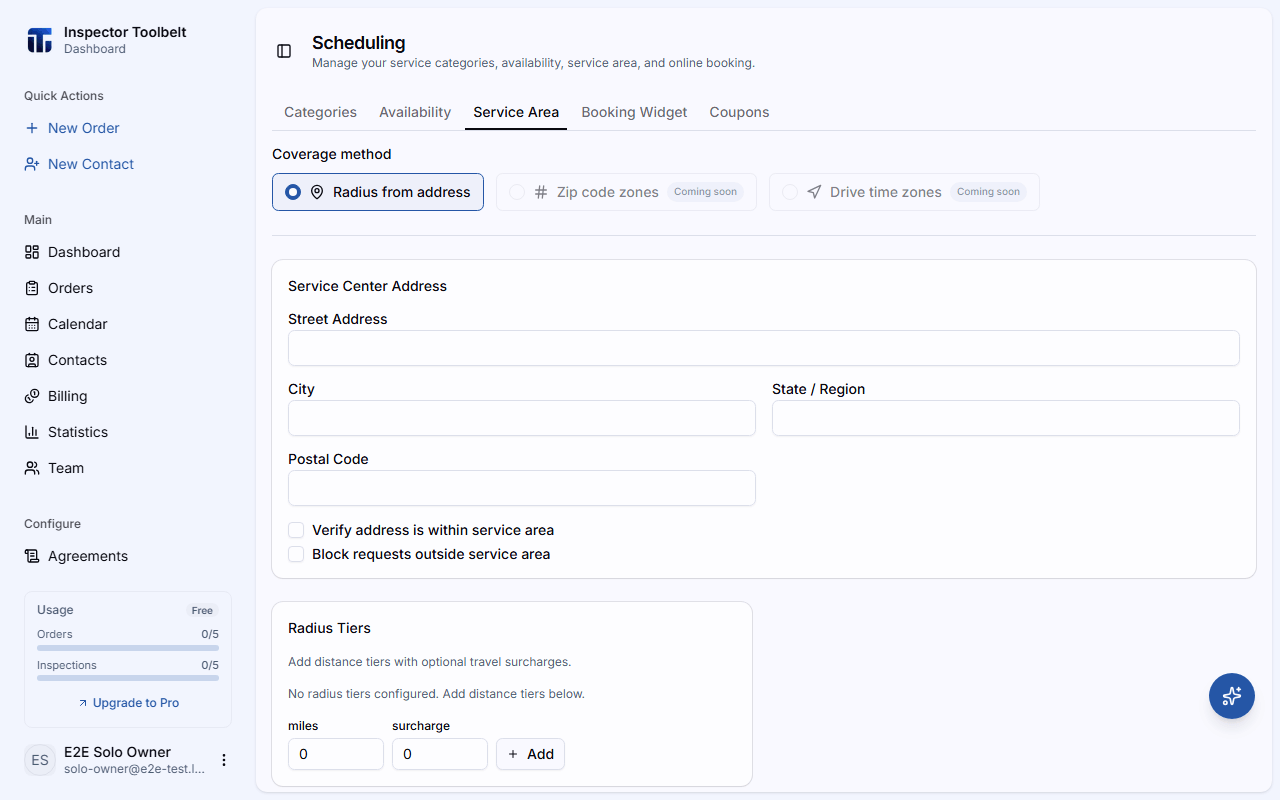
Choose a Coverage Method
Select Radius from address. (Zip code zones and drive-time zones are marked coming soon.)
Set Your Service Center
Enter your Street Address, City, State / Region, and Postal Code. A map preview shows your coverage. Then choose how strictly to enforce it:
- Verify address is within service area — clients see a warning if their address is beyond your maximum radius.
- Block requests outside service area — clients cannot complete a booking outside your area.
Add Distance Tiers
Add radius tiers with a distance in miles and a surcharge amount. Enter the miles and surcharge, then click Add — tiers save as soon as you add or remove them. Tiers sort automatically by distance, and a surcharge of $0 is allowed for a free tier. Click Save to store your address and enforcement settings.
How this affects bookings
On the booking page's property step, the client's address is checked against your service center. Depending on your settings, the client sees the distance, any travel surcharge that will apply, or a message that the address is outside your service area.