Report Templates
Build reusable report structures that scaffold every inspection.
Overview
A report template defines the structure of an inspection report. It's organized as Sections (e.g., "Roof") that contain Items (e.g., "Shingles"), and each item collects a rating, comments, photos, and attributes. When you start a new inspection, the template scaffolds the whole report for you.
For report-enabled accounts
Report templates work together with rating systems and the comment library.
Managing Templates
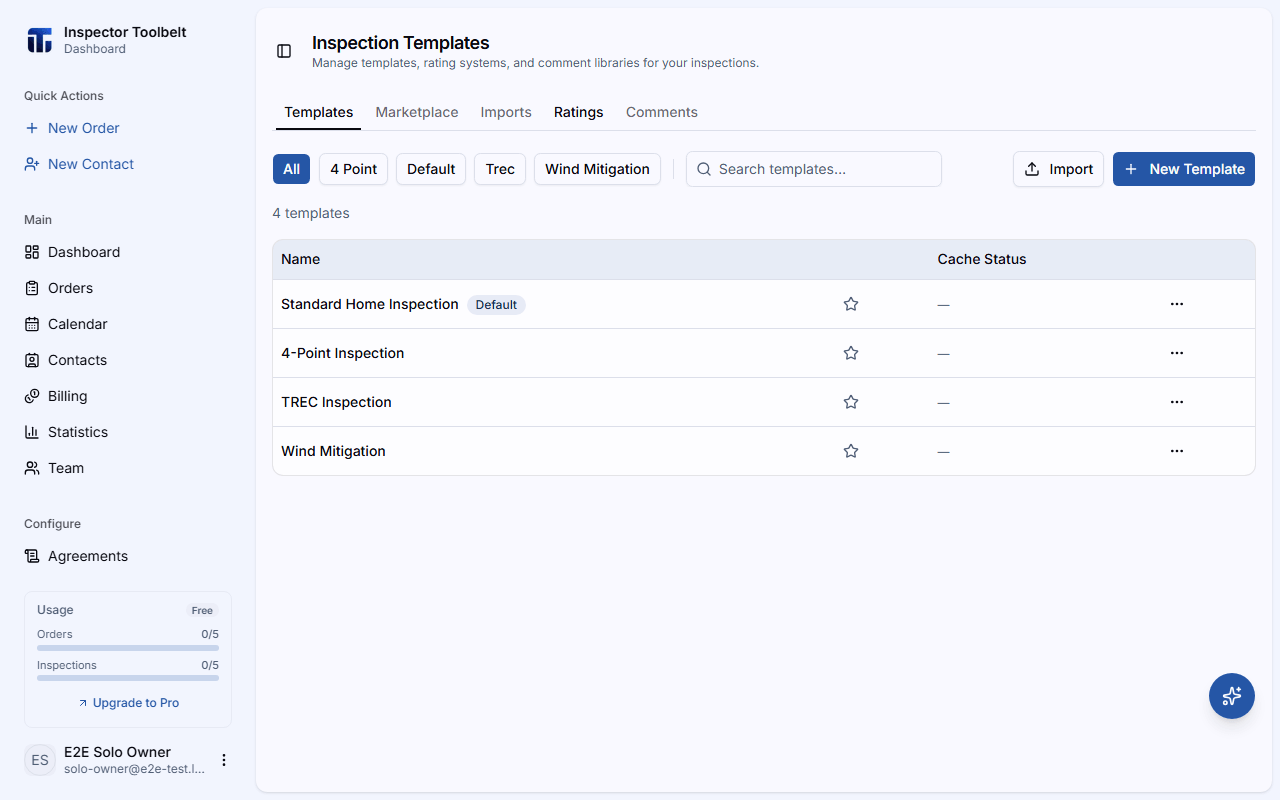
Navigate to Templates in the sidebar. The Templates tab lists your templates.
Creating a Template
Click New Template and set a Template Name and a Default Rating system. Optionally use Copy From to start from an existing template instead of a blank one.
Add Sections and Items
In the editor, click Add Section to create a section, then Add item within it. For each item you can set an Item Name and configure its Comments, Attributes, Photos, and Sub-Items tabs.
Set Item Rules
Mark an item as Information only when it needs no rating, or turn on Require a Rating / Require a Comment to make sure inspectors don't skip it.
Template Settings
The Settings panel controls report-wide options such as the cover style, where the summary appears, and display options like showing pictures in the summary or requiring a report signature.
List Actions
From the templates list you can:
- Edit — open the editor
- Duplicate — create a copy of the template (named with a "(Copy)" suffix)
- Set as default / Remove default — the default template is pre-selected for new inspections
- Delete — remove the template (with confirmation)
- Star a template to mark it a favorite
Start from the marketplace
Don't want to build from scratch? Browse the Template Marketplace for ready-made templates you can import.
Using a Template
Templates come to life when you write a report: starting an inspection on an Order clones the selected template's sections and items into a new report.