Writing a Report
Create, fill out, and publish an inspection report from an order.
Overview
The inspection editor is where you document your findings and produce a client-facing report. You build the report from Sections and Items, rate each item, add comments and photos, then publish a web report (or PDF) that's emailed to your client.
For report-enabled accounts
Reports are built from your report templates, rating systems, and comment library.
Starting an Inspection
Open an Order and go to its Inspections tab, then click New Inspection. (You can also reach every report from the Inspections list in the sidebar.)
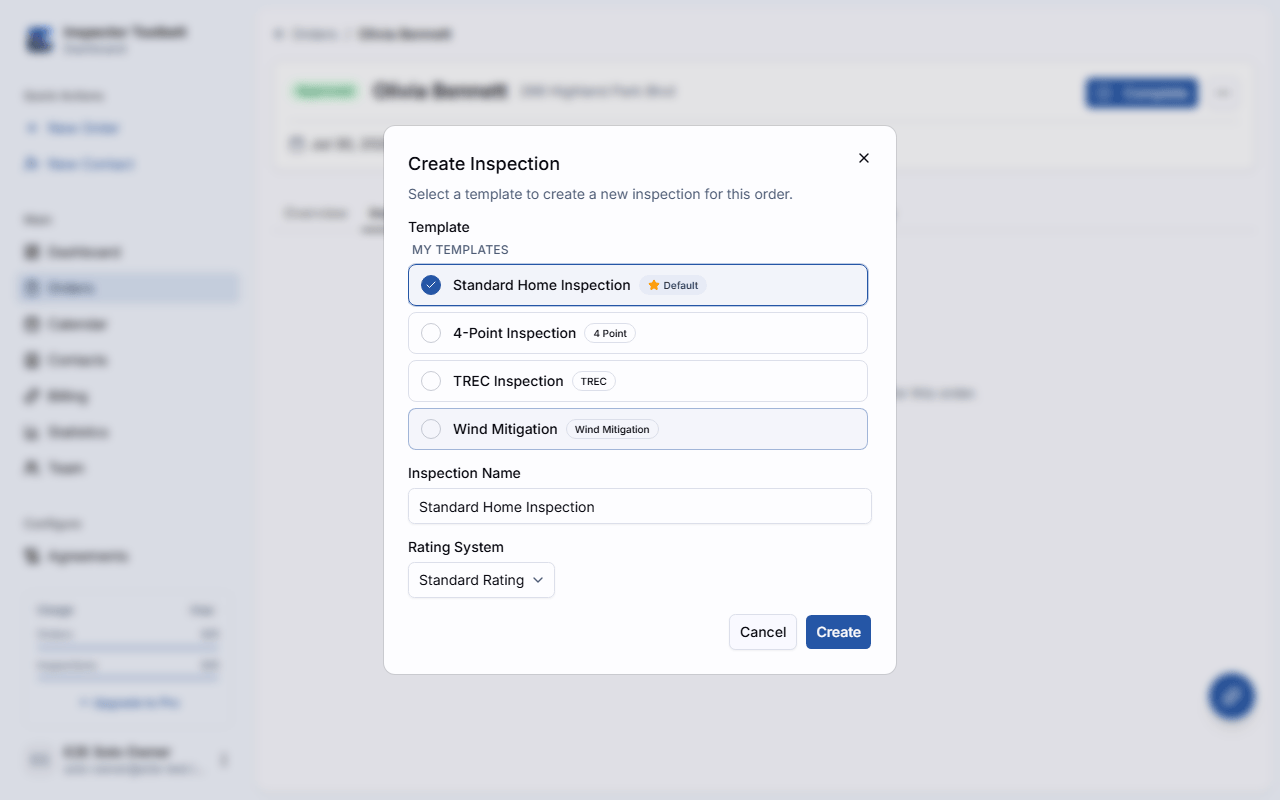
In the Create Inspection dialog, choose a Template, give the inspection a Name, and pick a Rating System. The template scaffolds all of the report's sections and items for you.
Filling Out the Report
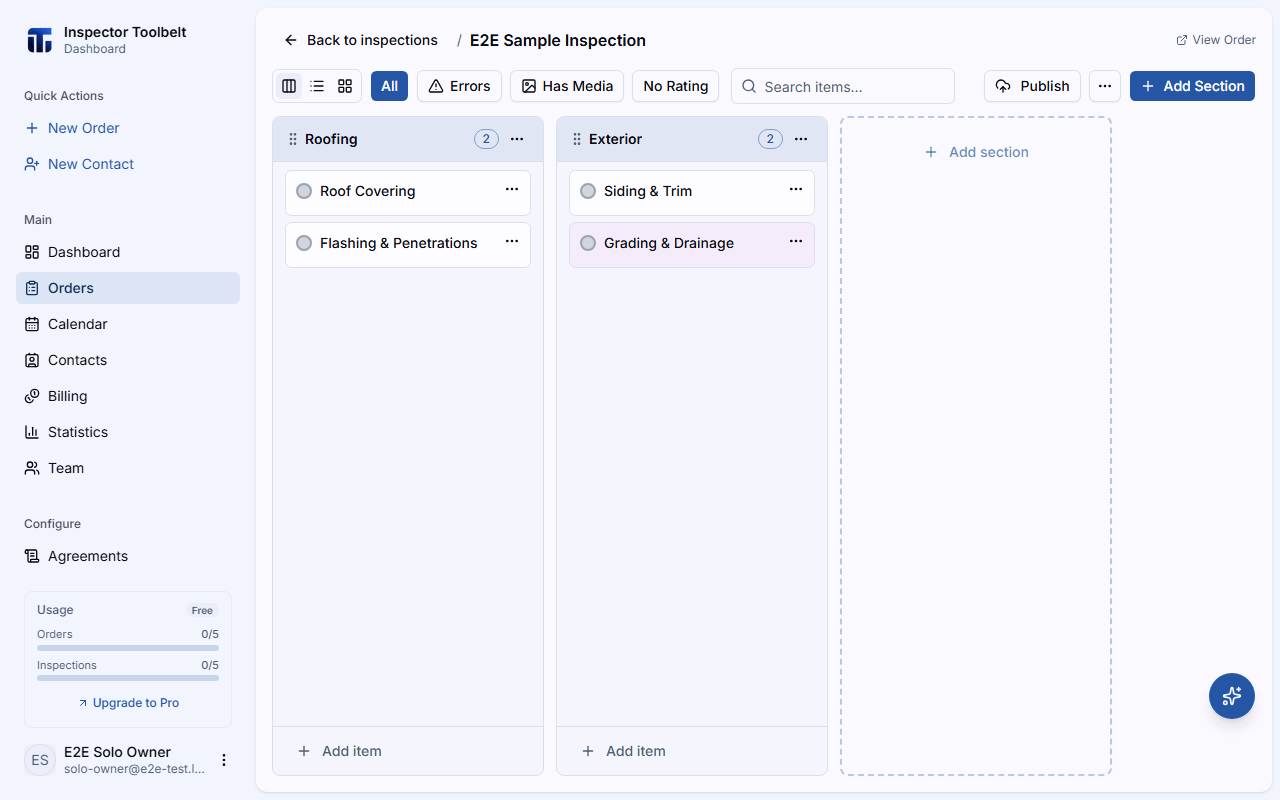
Work Through Items
Sections group your items. Click an item to open the item editor, which has Details, Comments, Attributes, Photos, and Sub-Items tabs. Use Add Section and Add item to extend the report beyond the template.
Rate Each Item
Set a Rating for the item from your rating system. Items marked Information only don't need a rating.
Add Comments
On the Comments tab, search your comment library or type a comment. You can edit inserted text for this report.
Attach Photos
On the Photos tab, click Upload or drag files in. You can annotate a photo and Set as cover for the report's cover image.
Your work is saved automatically
Inspections auto-save as a Draft. Only you can see a draft — it isn't shared until you publish.
Previewing and Publishing
Click Publish to open the Publish Report checklist. It flags anything worth reviewing first — a missing cover image, items missing a required rating or comment, or photos that haven't finished uploading. You can override the warnings and publish anyway.
Preview
Use Preview to generate a temporary version of the report without emailing anyone.
Choose Recipients and Publish
Select who receives the report — Client, Buyer's Agent, Listing Agent, or Other — then click Publish. The report is generated and emailed to the selected recipients, and View Report opens the live web report.
PDF-only reports
Most reports generate an interactive web report. Wind Mitigation and 4-Point inspections generate a PDF instead. You can also enable a separate Repair List summary PDF.
After Publishing
If you edit a published report, click Republish to regenerate it. Publishing doesn't change the Order status, but it fires the Report Published automation trigger — so you can automatically send a follow-up or payment reminder. From the editor's overflow menu you can also Save as Template to reuse this report's structure.