Team Calendar
How to view and assign your whole team's schedule from the calendar.
Overview
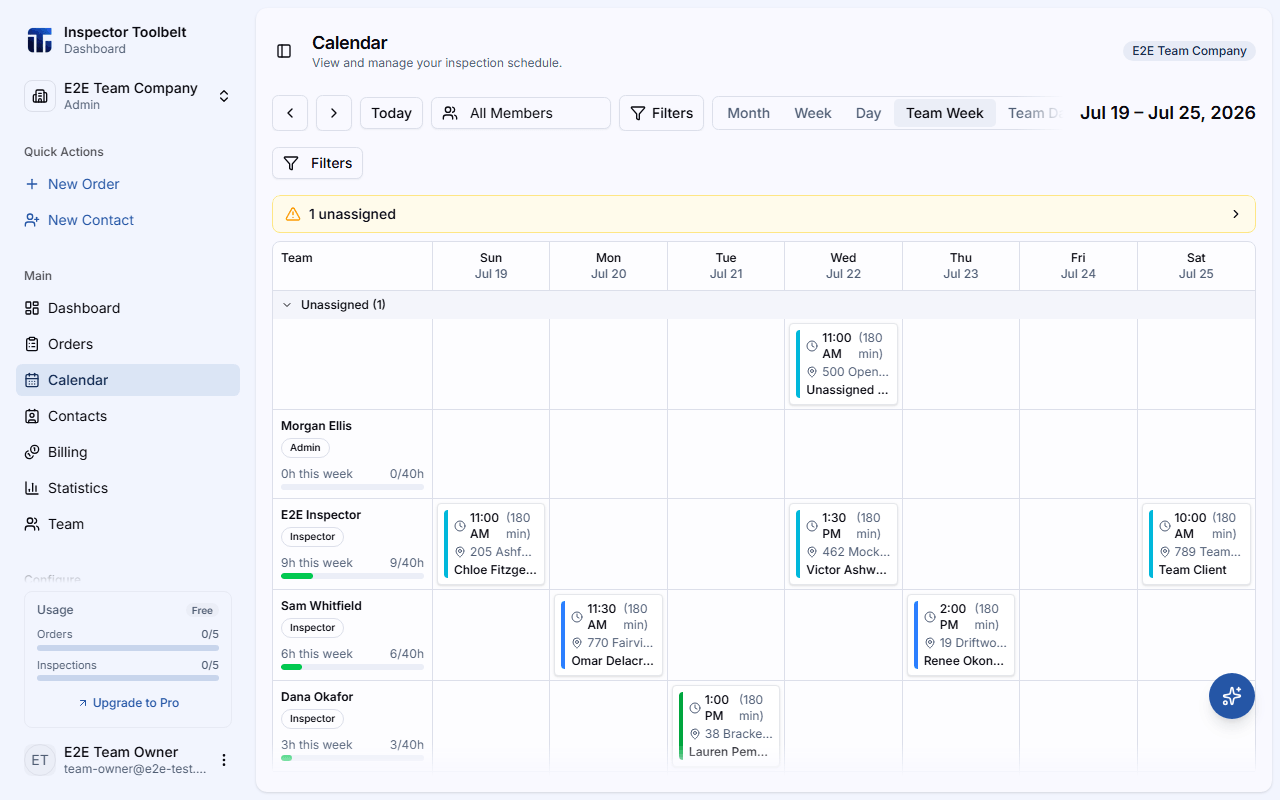
When you switch to a specific team using the team switcher (see Multi-Team Management), the calendar gains two extra views — Team Week and Team Day — that show every Inspector's schedule side by side.
Team billing required
Team Week and Team Day require an active team billing subscription. If it isn't enabled yet, you'll see a prompt to activate it before these views become available.
Team Week and Team Day
- Team Week lays out each Inspector as their own column, with a day-by-day grid across the week.
- Team Day shows the same per-member layout for a single day, alongside daily stats (on-site, complete, running late, on-time rate).
Each Inspector's rail shows their name, role, a weekly-hours progress bar against their target, and their service qualifications. Jobs are color-coded by service category (not by who's assigned) — a legend at the bottom of the grid maps colors to categories.
Unassigned work appears in a collapsible band at the top of Team Week. In Team Day, an Attention button opens a sidebar of alerts that need a decision — like a job that's running late or an unassigned appointment coming up soon.
Assigning and Reassigning Jobs
Drag any job onto a Inspector's column (or a different day) to assign or reassign it. If you'd rather not drag and drop, click Assign on an unassigned job to open the assignment dialog instead.
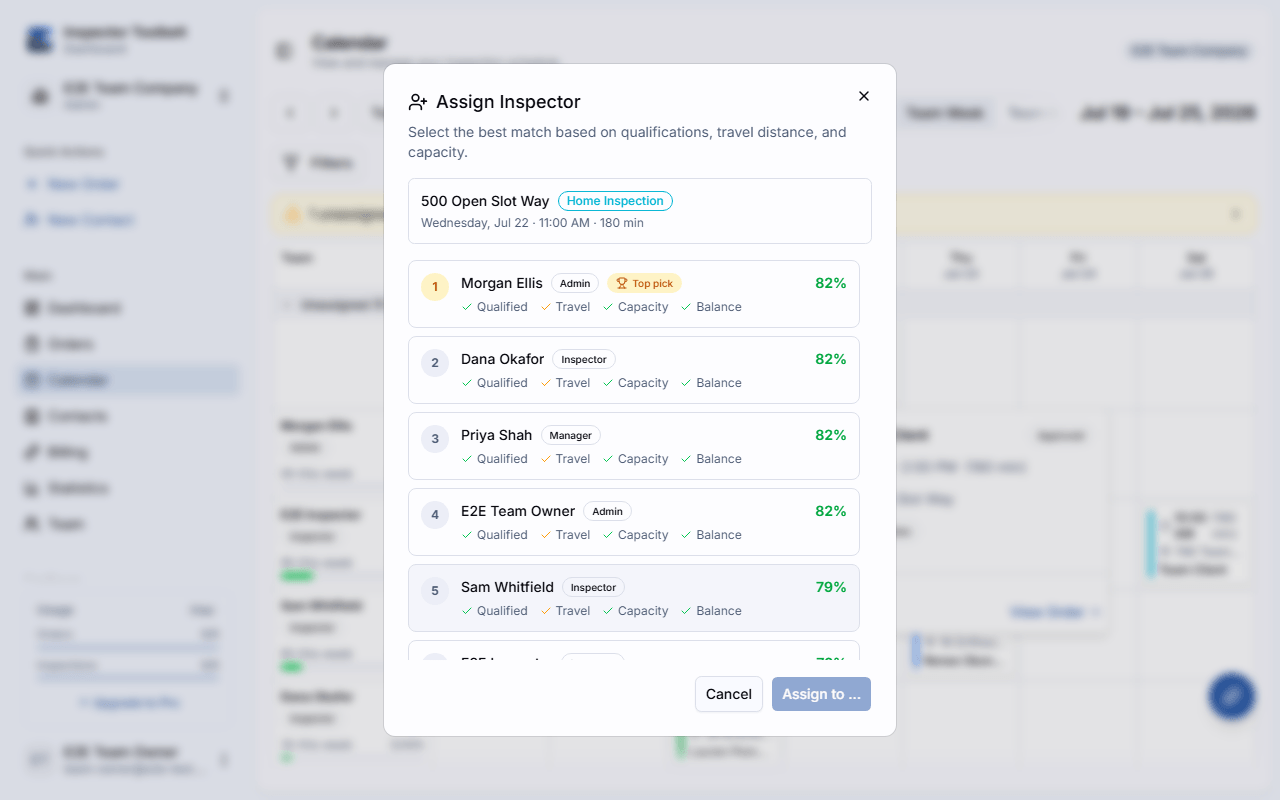
The dialog ranks candidates by qualifications, travel distance, and current capacity, and highlights the top pick.
Who can be assigned
Schedulers and inactive team members don't appear as assignment candidates — they can manage the calendar but don't perform field work themselves.
Filtering the Schedule
Use the member dropdown in the calendar header to narrow the grid down to one or more Inspectors. The Filters button opens a separate panel for filtering by service type, risk type (conflict, travel, over capacity, unqualified), and Order status.