Viewing Your Schedule
How to use the calendar to view and manage your schedule.
Overview
The calendar gives you a visual overview of all your scheduled Orders and availability. You can view by day, week, or month.
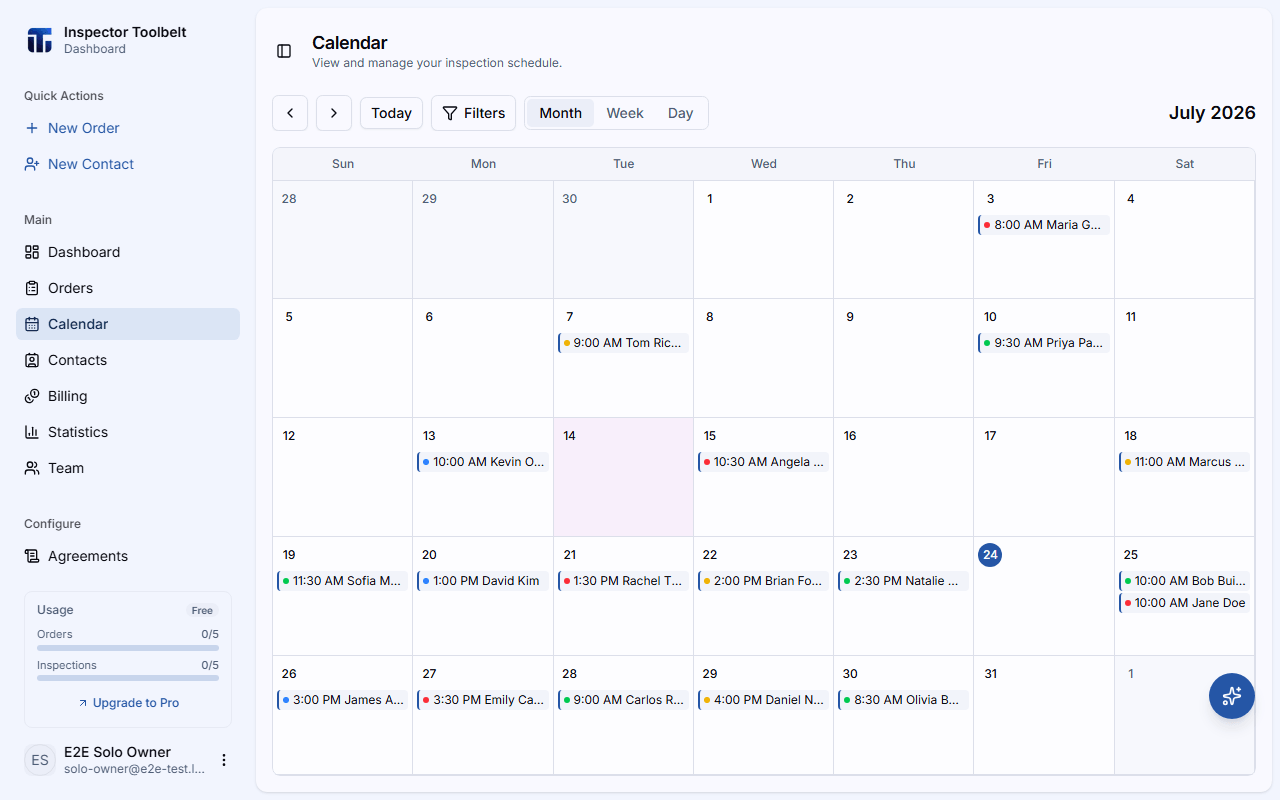
Calendar Views
See all Orders at a glance with daily counts. Best for getting an overview of your schedule density.
Detailed hourly view of your schedule. Best for planning your work week and spotting availability gaps.
Full detail for a single day, including all time slots and Order details.
A side-by-side weekly view showing each team member's schedule in their own column. Only available when you have team members.
Side-by-side daily view for all team members. Only available when you have team members.
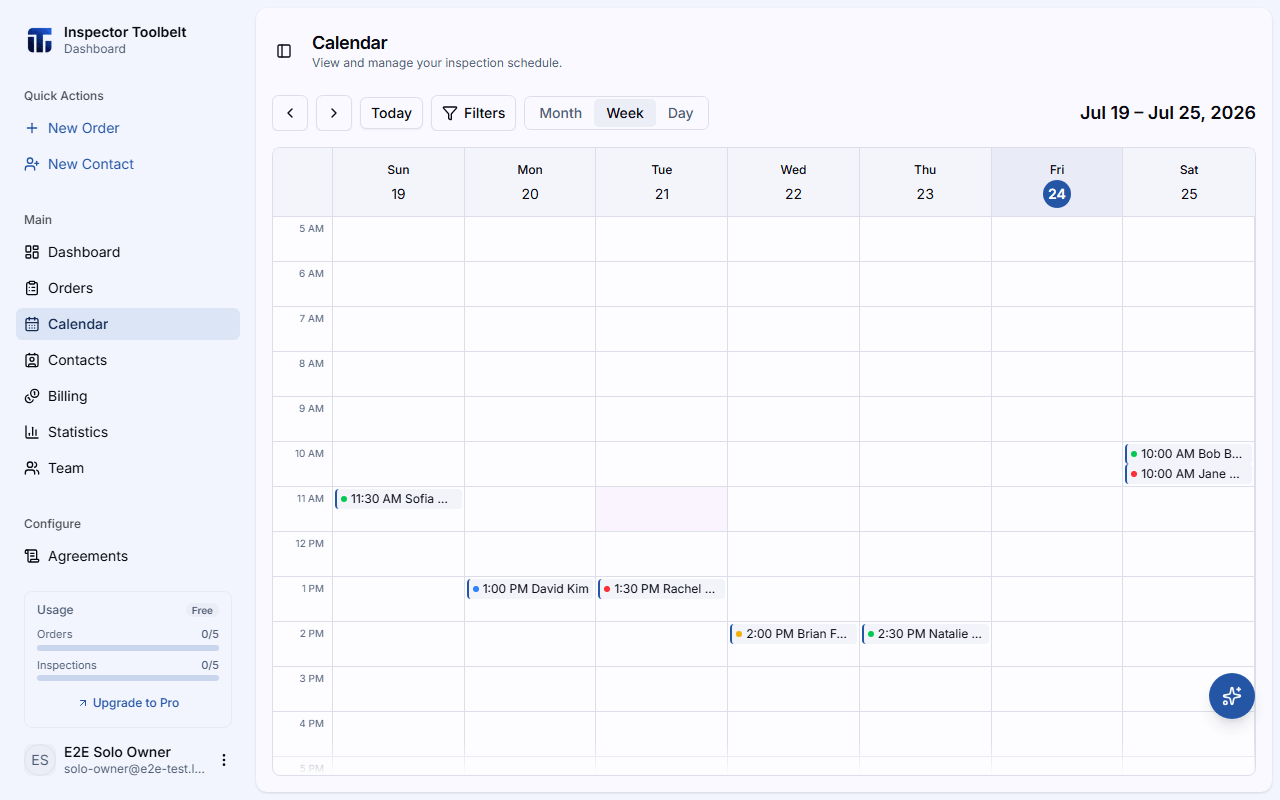
Interacting with Events
Click on any event to view the Order details. From there you can navigate to the full order detail page.
The calendar also displays Google Calendar events and time-away blocks alongside your Orders.
Status Color Coding
Each event shows a colored status indicator for its Order status:
| Status | Color |
|---|---|
| New | Red |
| Read | Yellow |
| Approved | Green |
| Complete | Blue |
| Draft / Archived | Gray |
Team calendar
When you have team members, the calendar shows events for all Inspectors with the assigned Inspector name displayed on each event. See the Team Calendar guide for assigning work across your team.