Multi-Team Management
How the multi-team system works for businesses with multiple teams or virtual assistants.
Overview
ITB Dashboard supports users who belong to multiple teams. This is common for virtual assistants managing several service businesses, or business owners with multiple branches.
Team View Modes
The dashboard offers three view modes, accessible from the team switcher in the sidebar:
View only your personal account data. This is the default mode.
View data for a specific team. When you select a team, the dashboard shows Orders, contacts, and billing for that team's account.
View aggregated data across all your teams. This mode is read-only — you cannot create or edit records when viewing all teams. It's designed for overview and reporting.
All Teams is read-only
When viewing all teams, create/edit/delete actions are disabled. Switch to a specific team to make changes.
Team Switching
Use the Team Switcher in the sidebar header to quickly switch between teams. While you're viewing a team (or all teams), a team badge in the page header makes it clear whose data you're looking at.
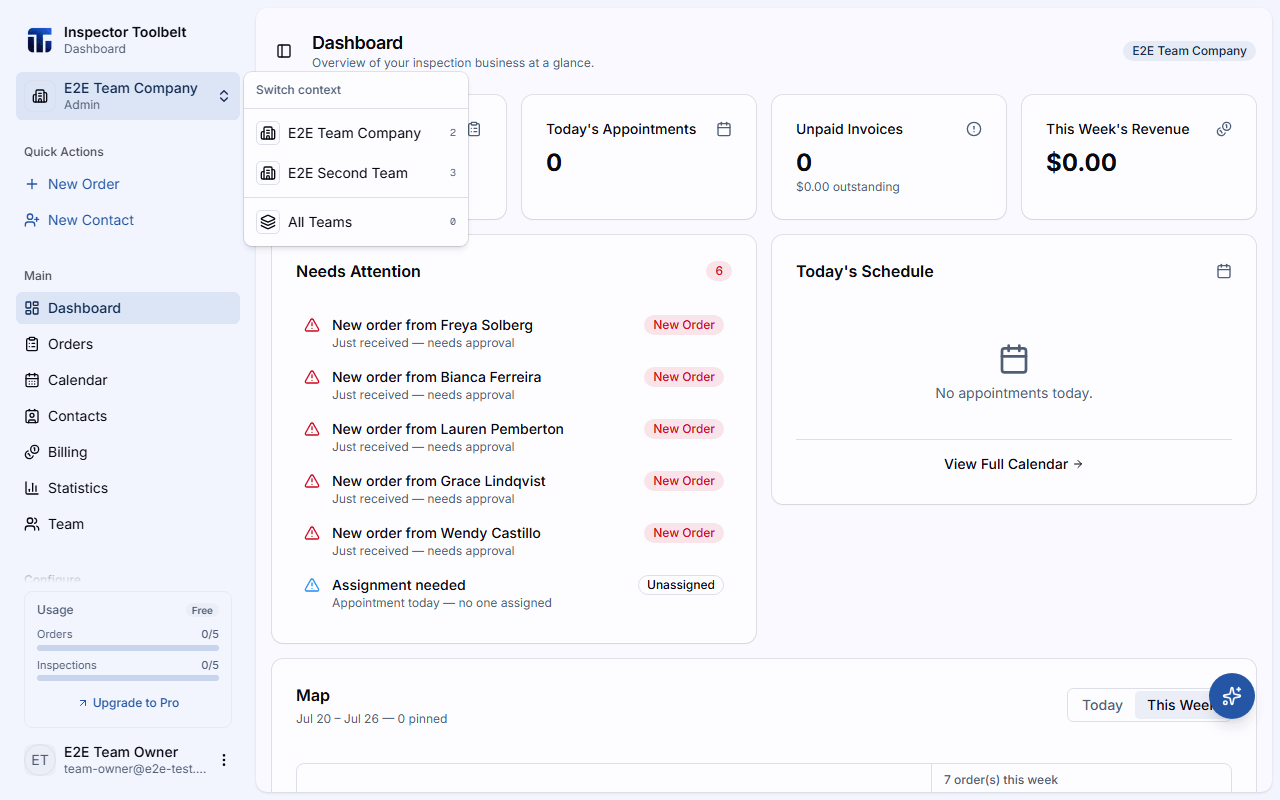
Press Ctrl+Shift+T (Cmd+Shift+T on Mac) to open the switcher, then press a number key to jump directly to that context.
How Team Data Works
When you're viewing a team, the dashboard automatically routes all data to the team owner's account. This ensures you see and interact with the correct Orders, contacts, and billing records for that team.