Managing Team Members
Add, remove, and manage roles for your team members.
Overview
The Team page lets you manage everyone who has access to your ITB Dashboard account.
Admin onlyViewing Your Team
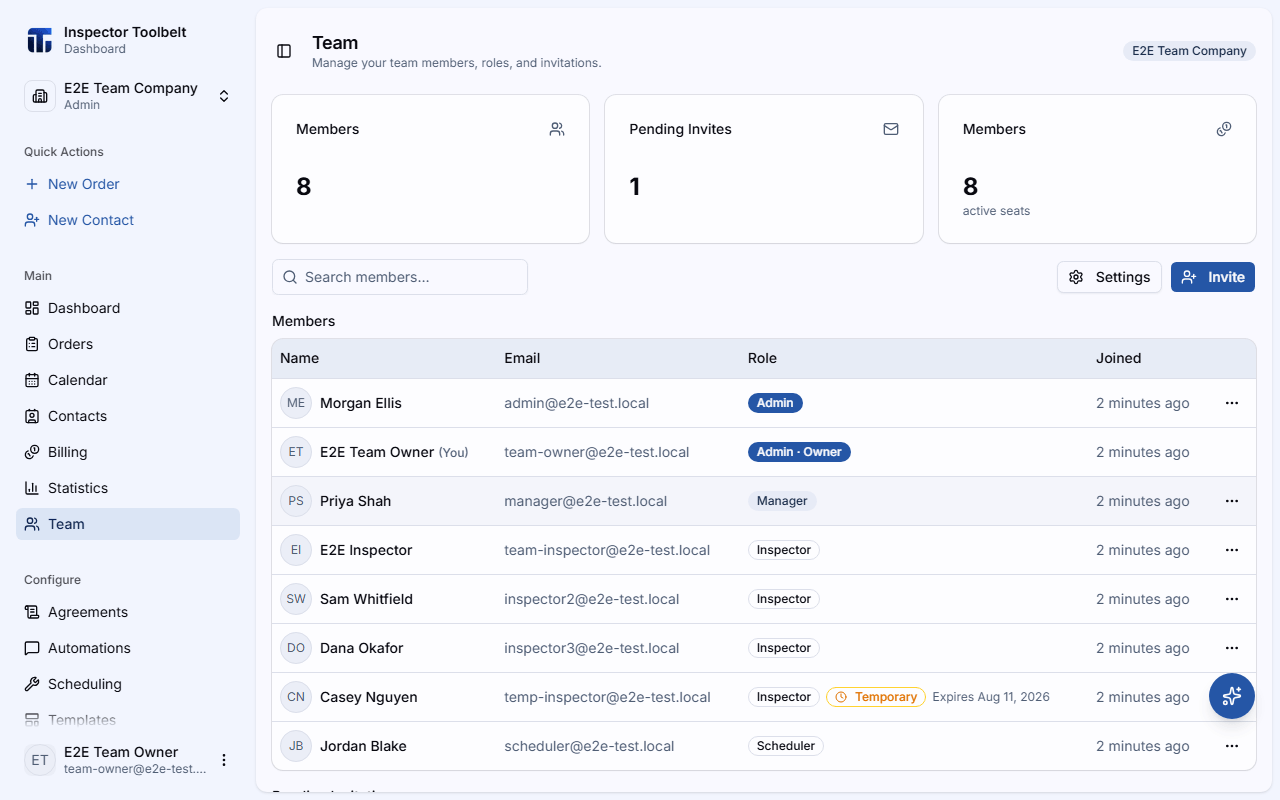
Navigate to Team in the sidebar to see all current members, their roles, and their status.
Roles
Each team member is assigned a role that controls their access:
| Role | Access |
|---|---|
| Admin | Full access to all features, settings, and team management |
| Manager | Manage Orders, contacts, billing, settings, automations, and agreements |
| Scheduler | Create Orders, manage calendar and contacts |
| Inspector | View Orders, calendar, and contacts (read-only) |
Full role breakdown
See the Team Roles reference for detailed permissions per role.
Once your team is set up, see the Team Calendar guide for scheduling and assigning work across your team members.
Temporary Team Members
A temporary team member has access through an expiry date you choose, instead of indefinite access — useful when you only need extra hands for a short stretch, like bringing in a Inspector to help on one big job.
The earliest expiry date you can pick is tomorrow, and the latest is one month out; by default, the full one-month window is selected. Their access lasts through the end of the day you pick, in your local time zone.
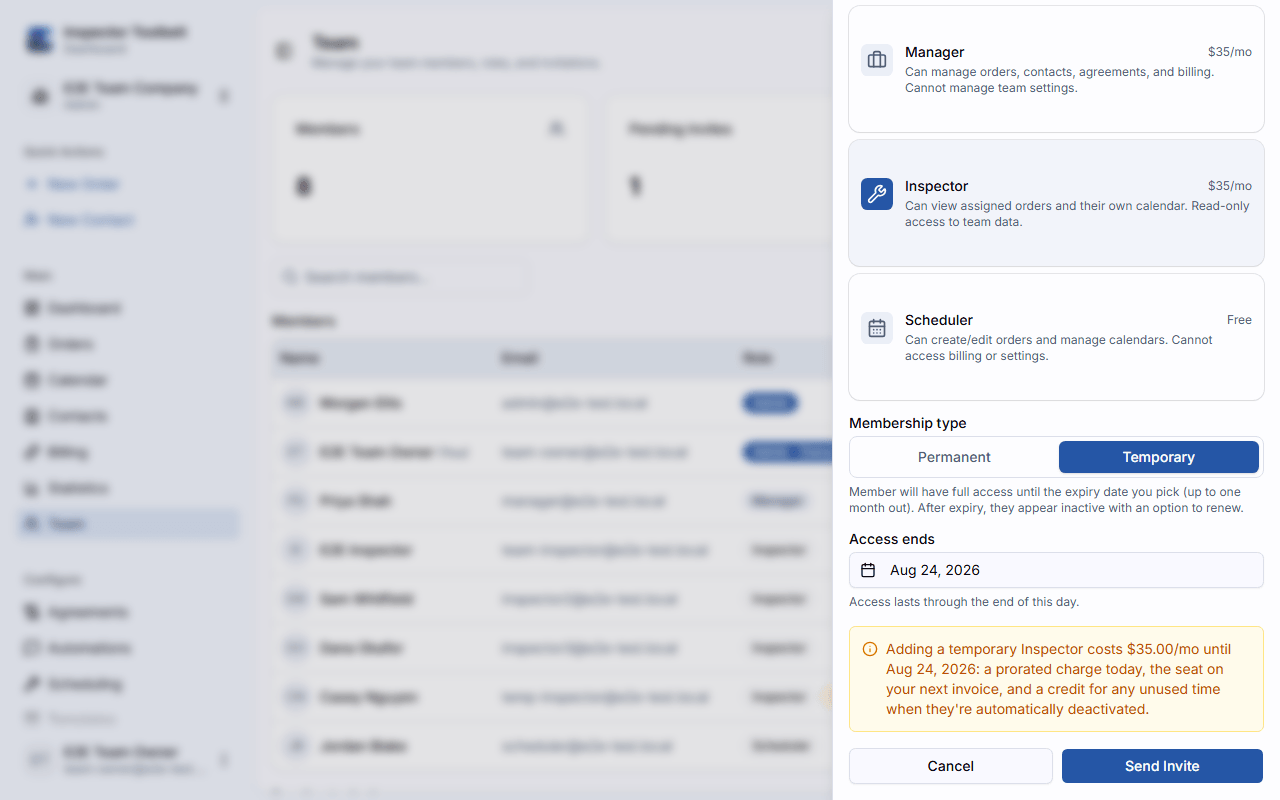
Billing is prorated: adding a temporary member charges a prorated amount today for the partial period, then the seat appears on your next regular invoice like any other member. When they're automatically deactivated at expiry, any unused time is credited back.
Start the Invite
Same as adding any team member: go to Team → Invite.
Set the Duration
Toggle Duration to Temporary and pick an expiry date.
Send the Invite
Review the prorated cost preview, then send the invite.
A link elsewhere in the app — like an "Add Helper" shortcut — can land you on this same invite sheet with Temporary already selected, as a convenience.
On the roster, active temporary members show an amber Temporary badge next to their role, along with their expiry date — see the roster above. Once a temporary member's expiry passes, they appear inactive: their previous role is shown grayed out alongside a red Expired badge. From their row's menu, choose Renew to give them a new expiry date, or Make Permanent at any time to drop the expiry and keep them on indefinitely. An existing permanent member can be converted the other way too, using the Make Temporary action.
Changing Roles
Click on a team member to view their profile, then select a new role from the Role dropdown. Changes take effect immediately.
Removing Members
To remove a team member, click Remove on their profile. They will immediately lose access to your account data.