Webhooks
Automatically send data to other apps when things happen in your account.
Overview
Webhooks let you automatically send data to other apps or services whenever something happens in your account — for example, when a new Order is created, an invoice is paid, or a Report is published. Instead of checking your dashboard manually, webhooks push updates to your tools in real time.
Manage your webhooks under SettingsIntegrations.
Setting Up a Webhook Endpoint
Navigate to Integrations
Go to SettingsIntegrations and scroll down to the Webhooks section.
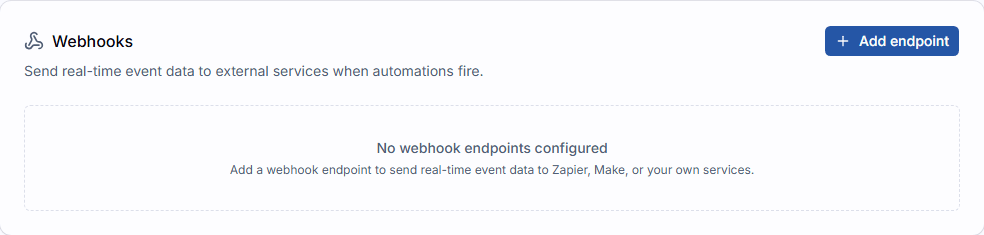
Add an Endpoint
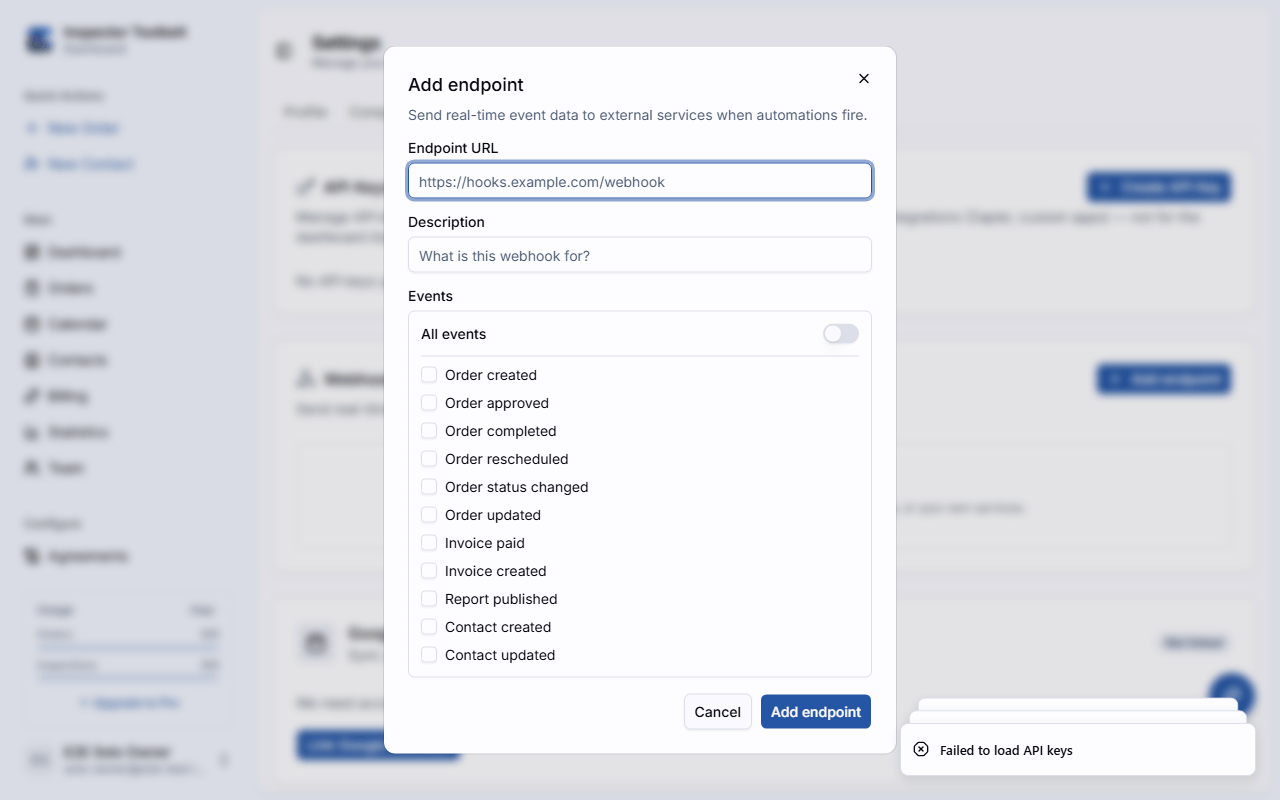
Click Add endpoint. In the dialog that appears, enter:
| Field | Description |
|---|---|
| URL | The web address where you want to receive data (provided by the app or service you're connecting) |
| Description | An optional label to help you remember what this endpoint is for |
| Events | Choose which events should trigger a notification — you can select individual events or subscribe to all of them |
Create and Copy the Signing Secret
Click Create. A signing secret will appear — this is a security key that lets the receiving app verify the data came from your account.
Copy your secret now
The signing secret is only shown once. Copy it and store it somewhere safe. If you lose it, you'll need to rotate the secret from the endpoint's settings.
You can add up to 10 webhook endpoints per account.
Available Events
These are the events you can subscribe to:
| Event | What triggers it |
|---|---|
| Order created | A new Order is added to your account |
| Order updated | The details of a Order are changed |
| Order approved | A Order is approved |
| Order completed | A Order is marked as complete |
| Order rescheduled | The appointment date/time on a Order is changed |
| Order status changed | Any status change on a Order (a catch-all for all status transitions) |
| Invoice created | An invoice is created |
| Invoice paid | A client pays an invoice |
| Report published | A Report is published |
| Contact created | A new contact is added |
| Contact updated | A contact's details are changed |
Industry-neutral data
The data sent with each event uses your account's industry terminology. The event names themselves stay the same across all industries.
Testing Your Webhook
After creating an endpoint, you can send a test event to make sure everything is connected:
Find your endpoint in the list and click the menu button.
Select Send test event. A sample event will be sent to your endpoint URL.
Check your receiving app to confirm the test data arrived.
Troubleshooting
Endpoint Disabled
If your endpoint fails to receive data 8 times in a row, it is automatically disabled to prevent repeated failures. The endpoint will show a Disabled status.
To re-enable it:
- Fix the issue on the receiving end (make sure the URL is reachable and responding correctly).
- Click the menu button on the endpoint and select Enable.
Checking Delivery History
Click the menu button on any endpoint and select View deliveries to see a log of recent delivery attempts. Each entry shows:
- Whether the delivery succeeded or failed
- The HTTP response code
- When it was sent
This helps you identify what went wrong if events aren't arriving as expected.
Security
Every webhook delivery includes a signing signature in the request headers. If you're working with a developer to build a custom integration, they can use your signing secret to verify that incoming data actually came from your ITB account and hasn't been tampered with.
The relevant headers are:
| Header | Purpose |
|---|---|
webhook-id | A unique ID for this event |
webhook-timestamp | When the event was sent (Unix timestamp) |
webhook-signature | The HMAC-SHA256 signature to verify |
For developers
To verify a signature, compute HMAC-SHA256 over the string {timestamp}.{body} using your signing secret, and compare it to the signature in the header (after removing the v1= prefix). Use a constant-time comparison to prevent timing attacks.
Use with Zapier & Make
If you use automation platforms like Zapier or Make (formerly Integromat), they can connect to your ITB account using OAuth and subscribe to webhook events automatically. Look for the ITB integration in your automation platform's app directory.