Editing an Order
How to update services, pricing, and billing details after an order is created.
Overview
A Order isn't locked in once it's created. You can update its services, pricing, and billing at any point in its lifecycle — New, Draft, Approved, or Complete — from two places on the Order detail page.
Scheduler onlyRead-only access
Inspectors have read-only access to Orders and can't make edits. Viewing All Teams is also read-only — switch to a single team from the team switcher to make changes.
Editing Services and Pricing from the Overview Tab
On the Overview tab, click the pencil icon on the Pricing Summary card to open the services editor.
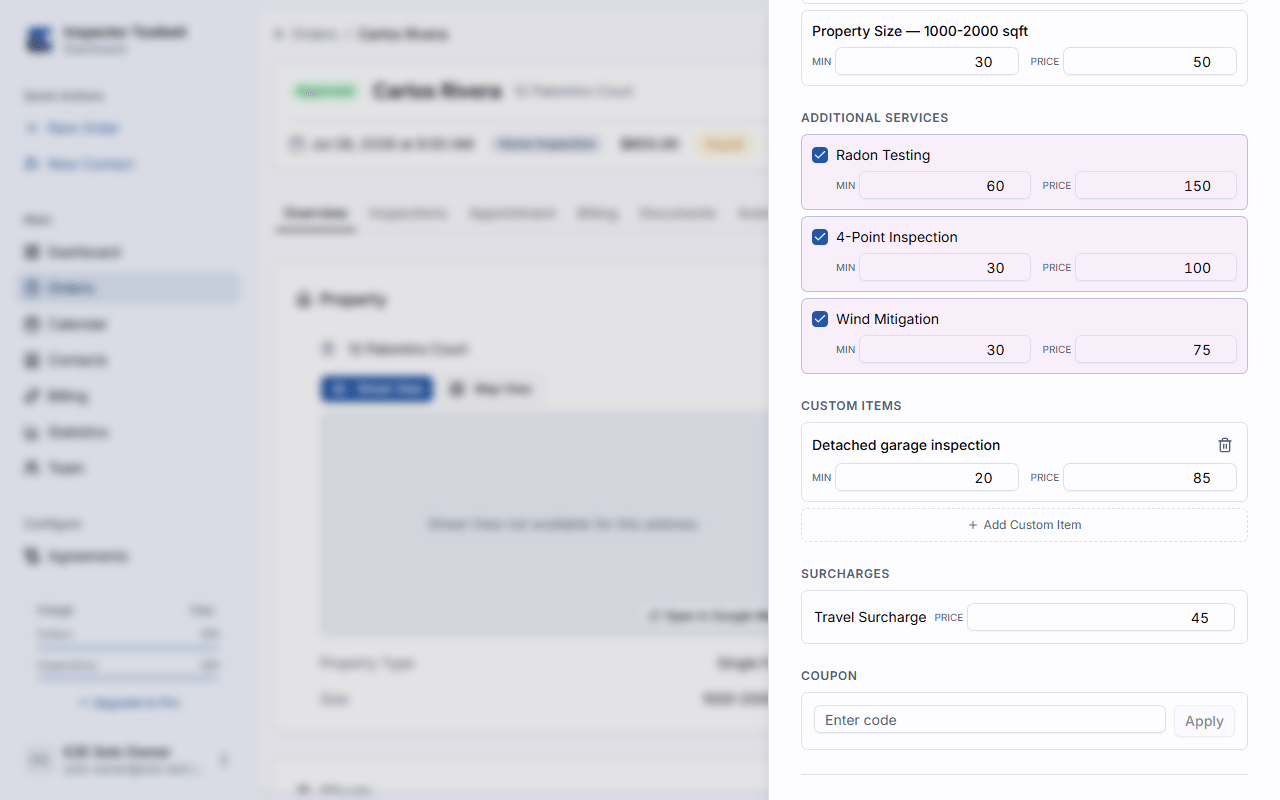
From here you can:
- Change the Inspection Type, property type, and property size — switching Inspection Type resets your other selections, and once an invoice exists for this Order, the Inspection Type can no longer be changed
- Toggle additional services and additional info items on or off
- Adjust the price and time (in minutes) for the base service, any additional item, or the property size
- Add custom line items — a description, price, and time — for one-off charges not in your service catalog
- Set a travel surcharge
- Apply a coupon code, which validates against your configured coupons and is applied as a discount line
As you make changes, the sheet shows a live comparison between the current total and the new total.
Removing paid items
If you remove an additional service, info item, or custom item that's already been paid for on an invoice, you'll be prompted to issue a refund for that amount when you save.
Editing Services and Pricing from the Billing Tab
The Billing tab offers the same services editor through the pencil icon next to Line Items — useful when you're focused on invoicing rather than the full order overview.
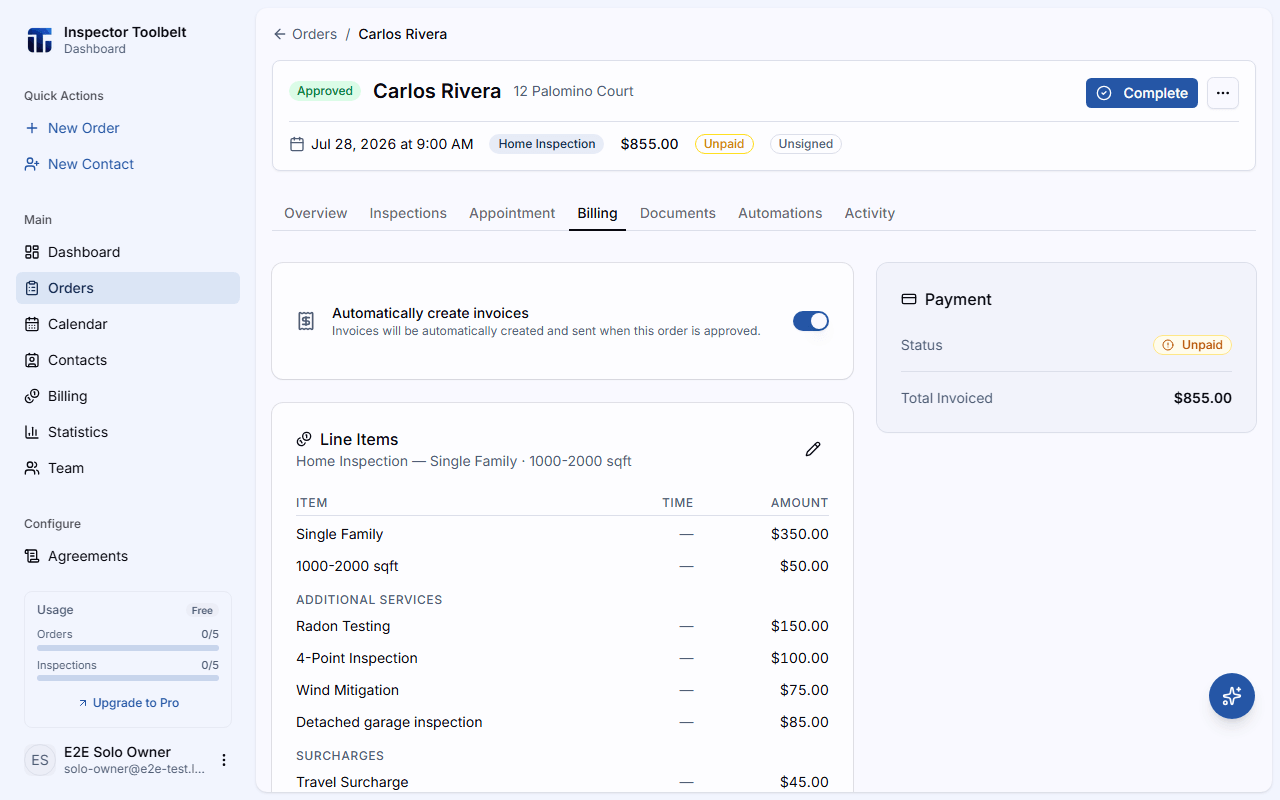
From the Billing tab you can also:
- Record a payment — cash, check, Venmo, Zelle, bank transfer, or other — against an unpaid invoice
- Void a draft or unpaid invoice
- Refund or issue a partial refund on a paid invoice
- Create a supplemental invoice for newly added services that haven't been billed yet
- Finalize and send a draft invoice to the client
See Creating Invoices for the full list of invoice statuses and how payments work.
What Happens on Approved Orders
Saving a change to the client, address, or pricing details on an Approved Order triggers a few automatic follow-ups:
- Any pending automated notifications are updated with the new details
- If the Order has agreements or unpaid invoices, you're offered the option to regenerate documents and resend past notifications, so the client always sees up-to-date paperwork
Automatic Invoice Adjustment
When a pricing change affects an Order that already has an invoice, the dashboard tries to reconcile billing automatically:
- A price increase on an already-sent invoice generates a new supplemental invoice for the difference
- A price decrease on a paid invoice issues a credit note (or refund) for the removed amount
- A price decrease on an unpaid invoice voids that invoice and replaces it with one reflecting the new total
If automatic adjustment can't complete, a dialog lets you choose how to handle it manually — add a supplemental invoice, replace the existing invoice, or skip billing changes for now.