Creating Invoices
How to create, send, and manage invoices for your services.
Overview
ITB Dashboard integrates with Stripe to handle invoicing and payments. You can create invoices from any Order detail page.
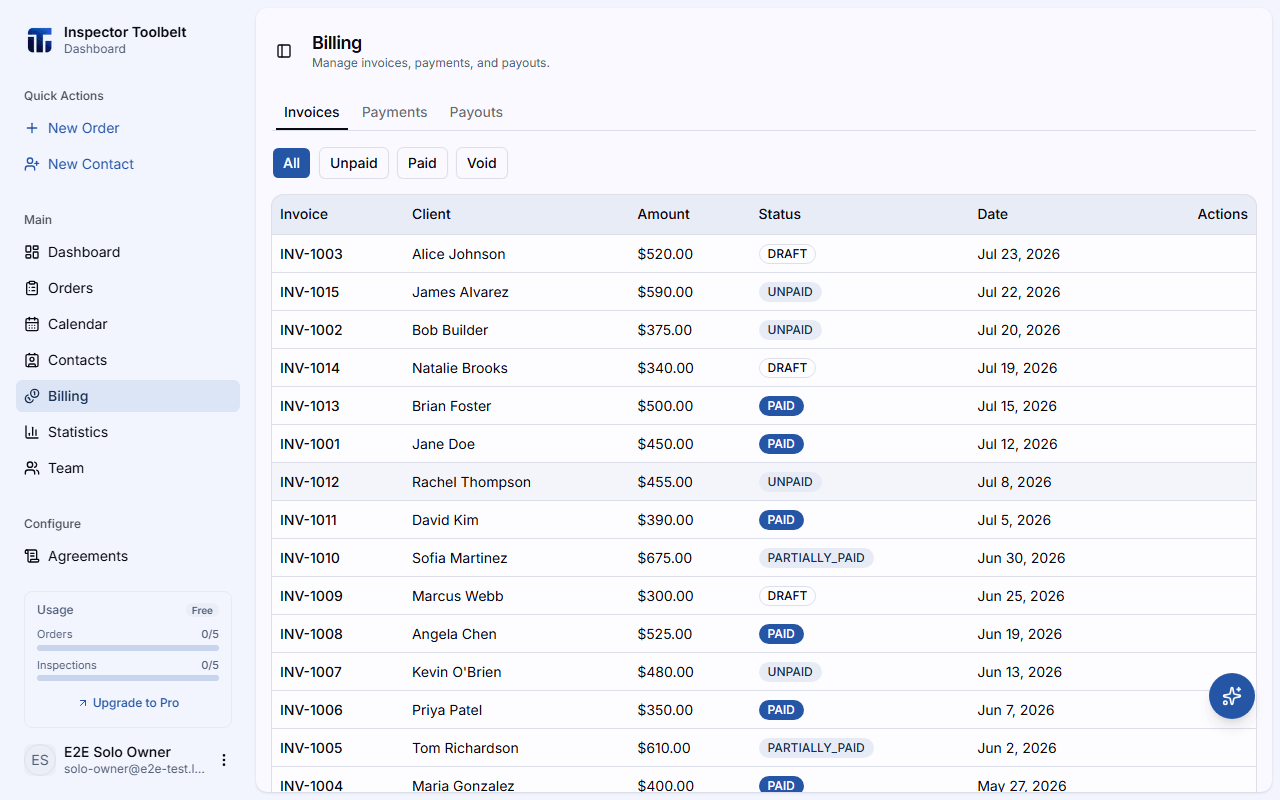
Creating an Invoice
Navigate to the Order detail page and click the Billing tab.
Click Create Invoice. The line items come from the Order's pricing. Optionally set a due date, then click Create Draft — the invoice is created in Draft status.
When you're ready to bill the client, click Finalize & Send. The invoice is finalized in Stripe, moves to Unpaid, and the client receives a payment link via email.
Invoice Statuses
| Status | Description |
|---|---|
| Draft | Invoice created but not yet finalized |
| Unpaid | Invoice sent to the client, awaiting payment |
| Paid | Full payment received |
| Partially Paid | Partial payment received |
| Refunded | Full refund issued |
| Partially Refunded | Partial refund issued |
| Void | Invoice cancelled and voided |
Payment Methods
Clients can pay invoices online via the payment link included in the invoice email. Supported payment methods depend on your Stripe account configuration.
Connect your Stripe account
To enable invoicing, connect your Stripe account in SettingsInvoices.