How-To GuidesContacts
Managing Contacts
How to add, edit, and organize your client and business contacts.
Overview
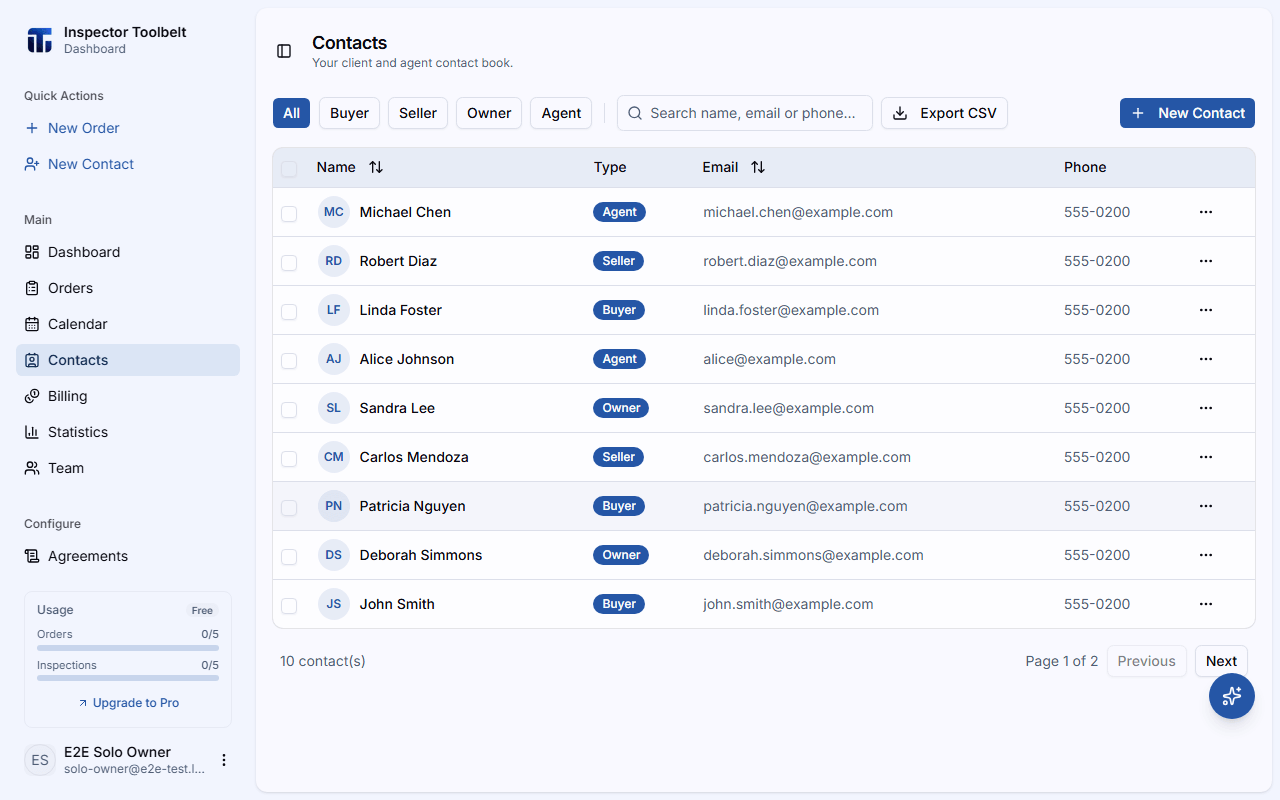
The Contacts page is your operational rolodex — clients, agents, property managers, and other contacts you work with regularly.
Adding a Contact
Click New Contact from the contacts page.
Fill in the contact details:
| Field | Description |
|---|---|
| First Name | The contact's first name |
| Last Name | The contact's last name |
| Used for notifications and invoicing | |
| Phone | Contact phone number |
| Contact Type | Categorize as client, agent, or other types based on your industry |
Click Save to add the contact.
Searching and Filtering
Use the search bar to find contacts by name, email, or phone. Use the Filter dropdown to narrow by contact type.
Quick Actions
From the contacts list, you can quickly:
- Call a contact directly
- Email a contact
- Edit their details
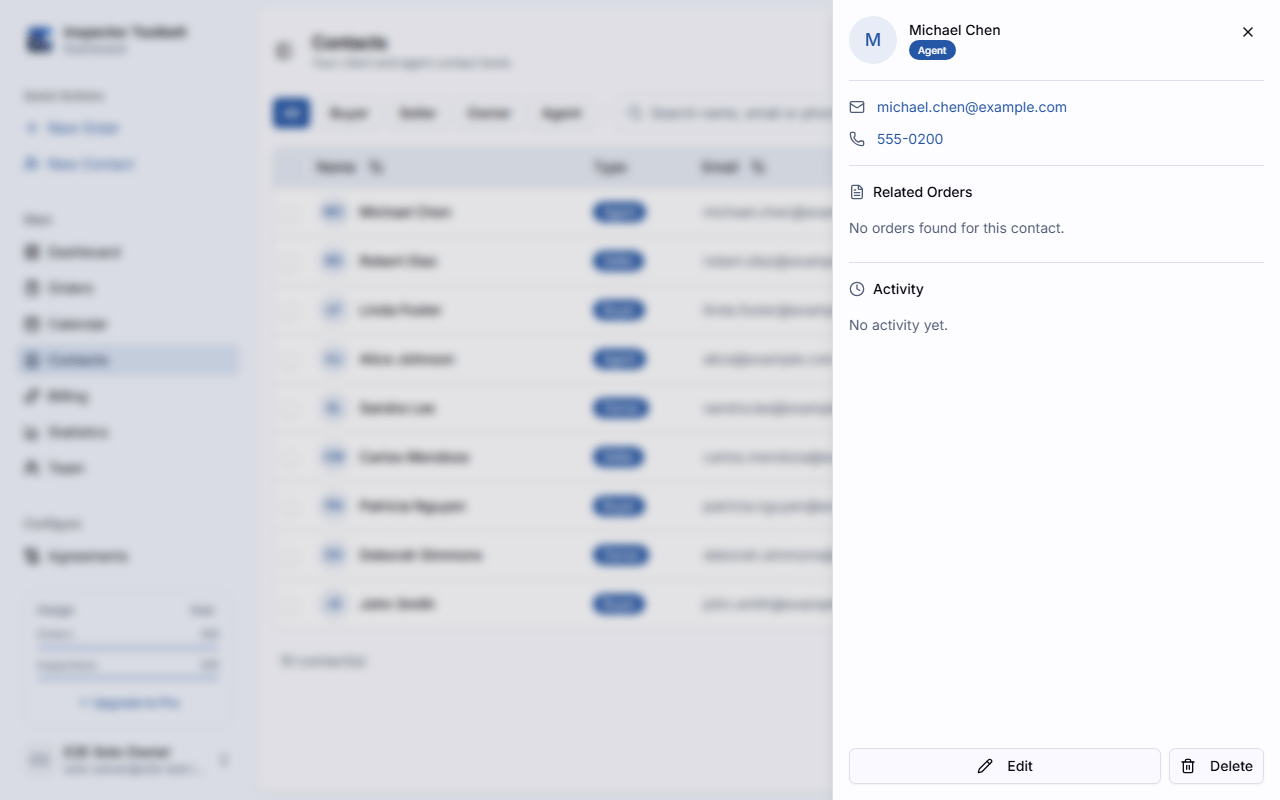
Click a contact to open its detail panel. From there you can tap their email to send a message or their phone number to call, review related Orders with status badges, scroll through an activity timeline, and use Edit or Delete.